FlowCE
Calculus on your TI-84 Plus CE.
Type math the way it looks. Get exact answers the way your textbook writes them, and every step to get there.
KhiCAS + Flow
KhiCAS, as Bernard Parisse made it.
His menus, keys and catalog, the 2D editor with the line as typed under it, the spreadsheet and programs, drawn in FlowCE's look and at its speed.
Free and open source. For the TI-84 Plus CE and TI-83 Premium CE.

What's new
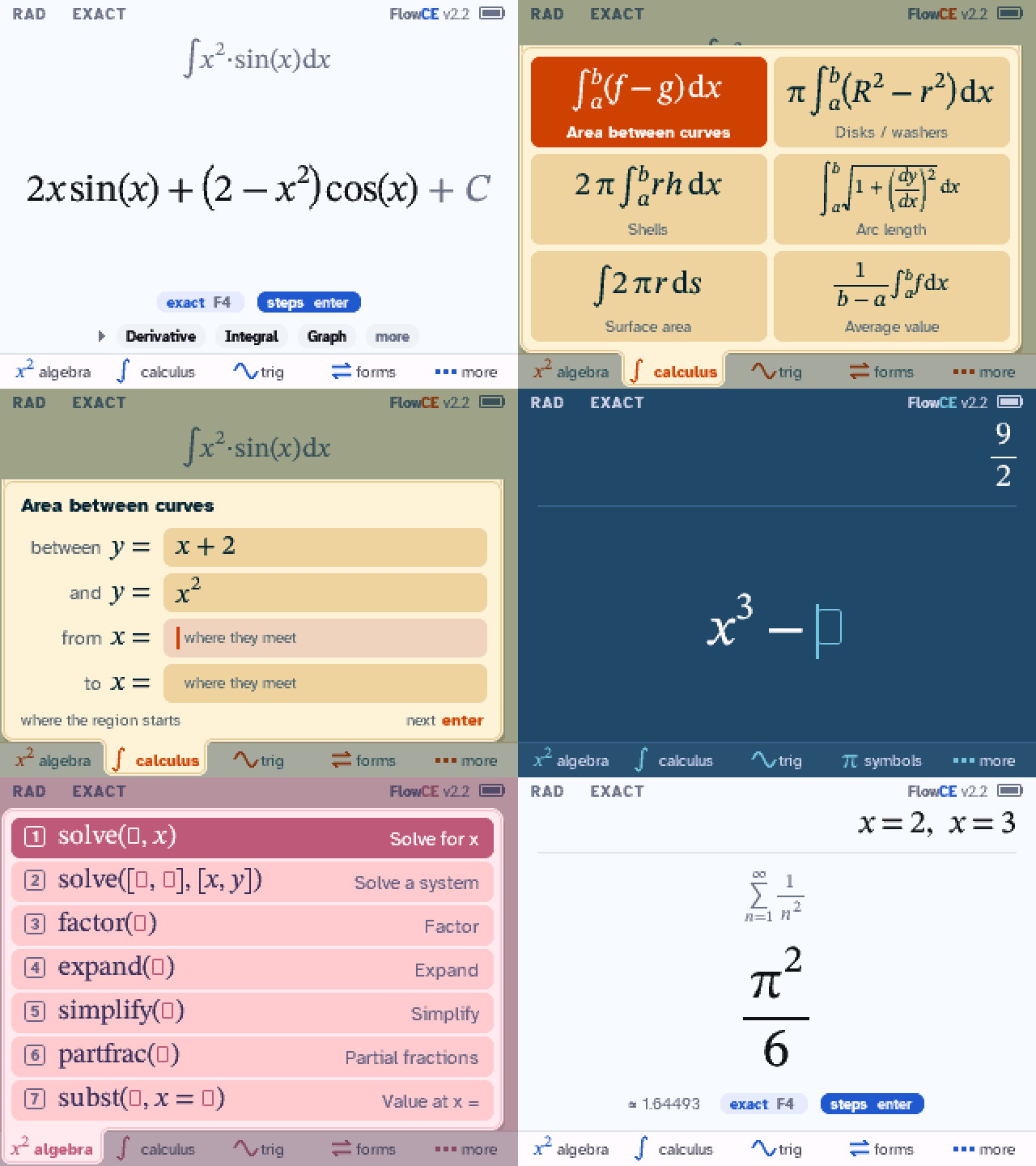
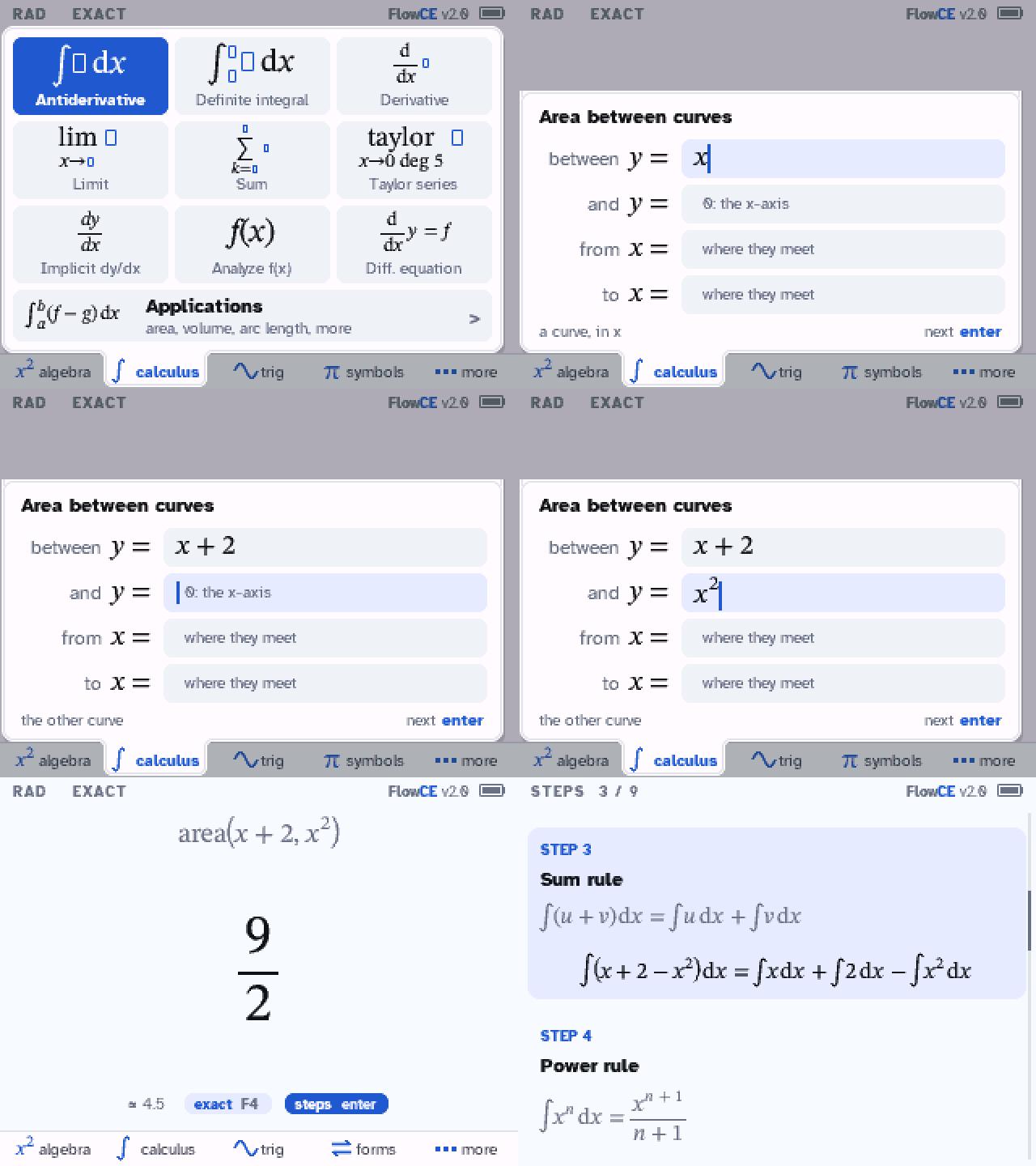
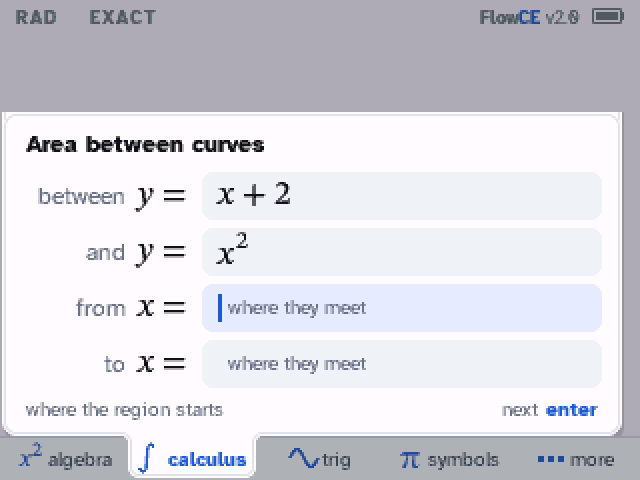
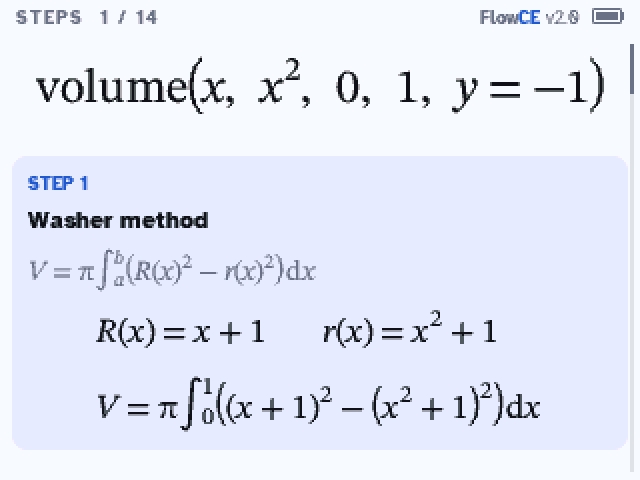
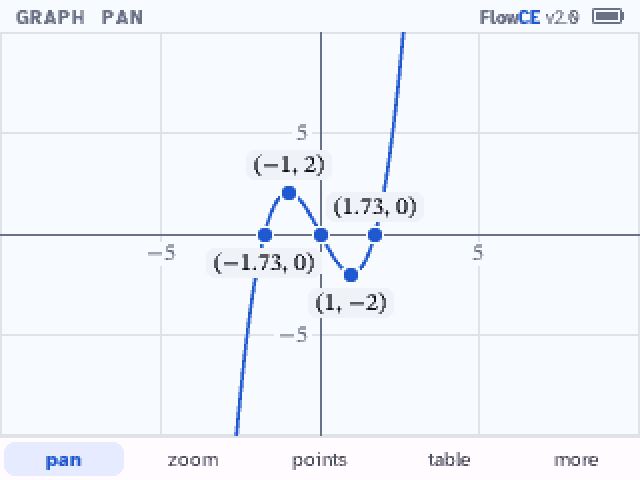
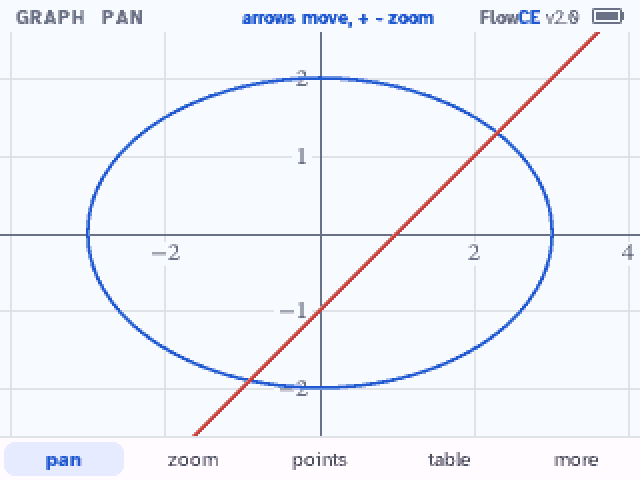
FlowCE 2.3: the normal line and the osculating circle on the graph screen, and the TI-83 Premium CE's own keys. KhiCAS + Flow 1.1: KhiCAS's 1D command line in color. KhiCAS + Flow takes FlowCE Python's place: Bernard Parisse's KhiCAS in FlowCE's look. In FlowCE: steps for algebra as well as calculus, a real graph screen, the applications of calculus as forms you fill in, statistics, probability, nine themes you can tell apart on the calculator, and faster menus and answers.
See what's newHide
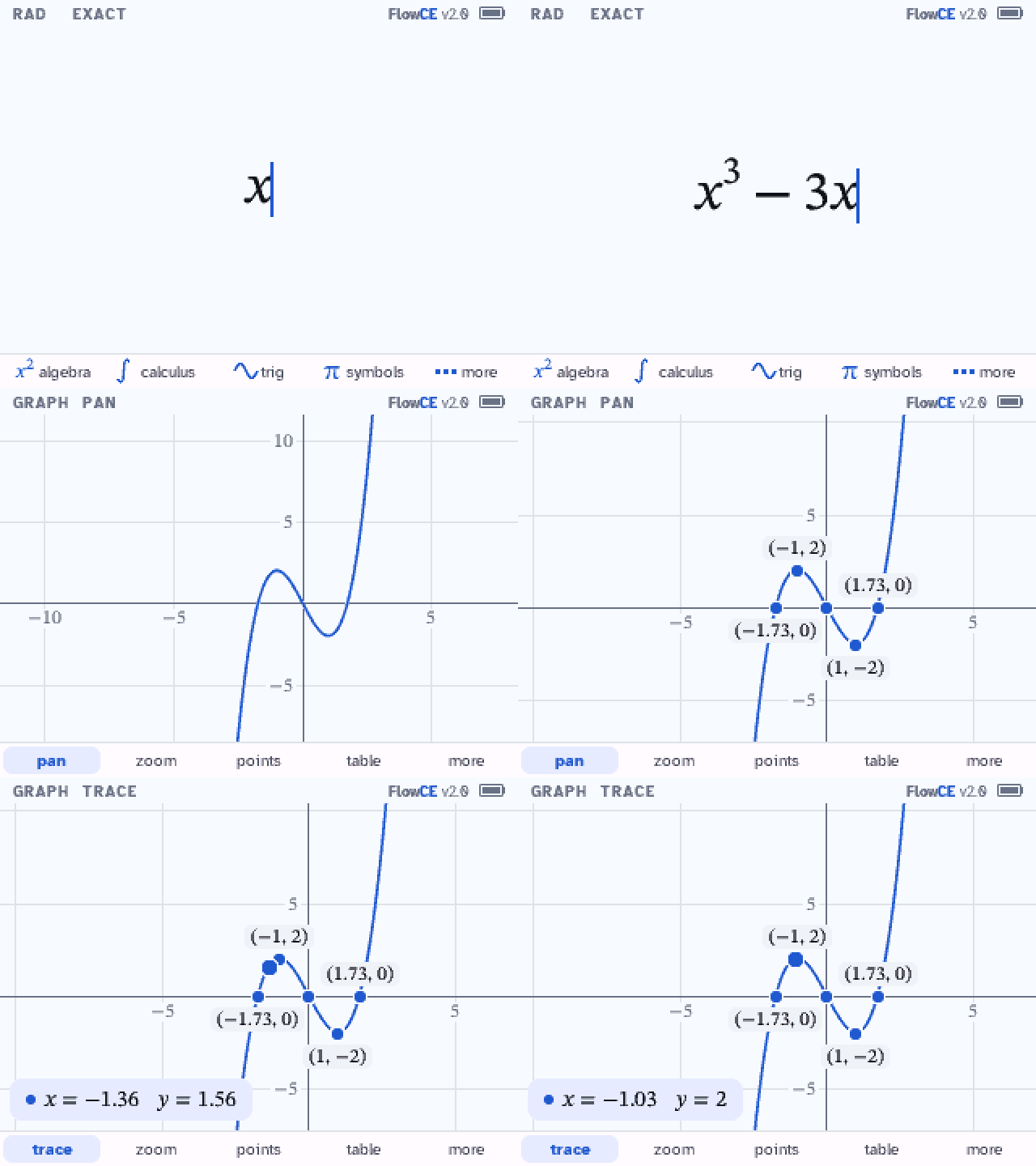
- 2.3: the normal line and the osculating circle on the graph screen, the TI-83 Premium CE's own keys (trig, résol, frac), a start screen that flows into the app, and the installer's leftover files deleted at the first start (256 KB of archive back).
- KhiCAS + Flow 1.1: KhiCAS's 1D command line in color (mode → 2D history off), the normal line and the osculating circle, the TI-83 Premium CE's keys.
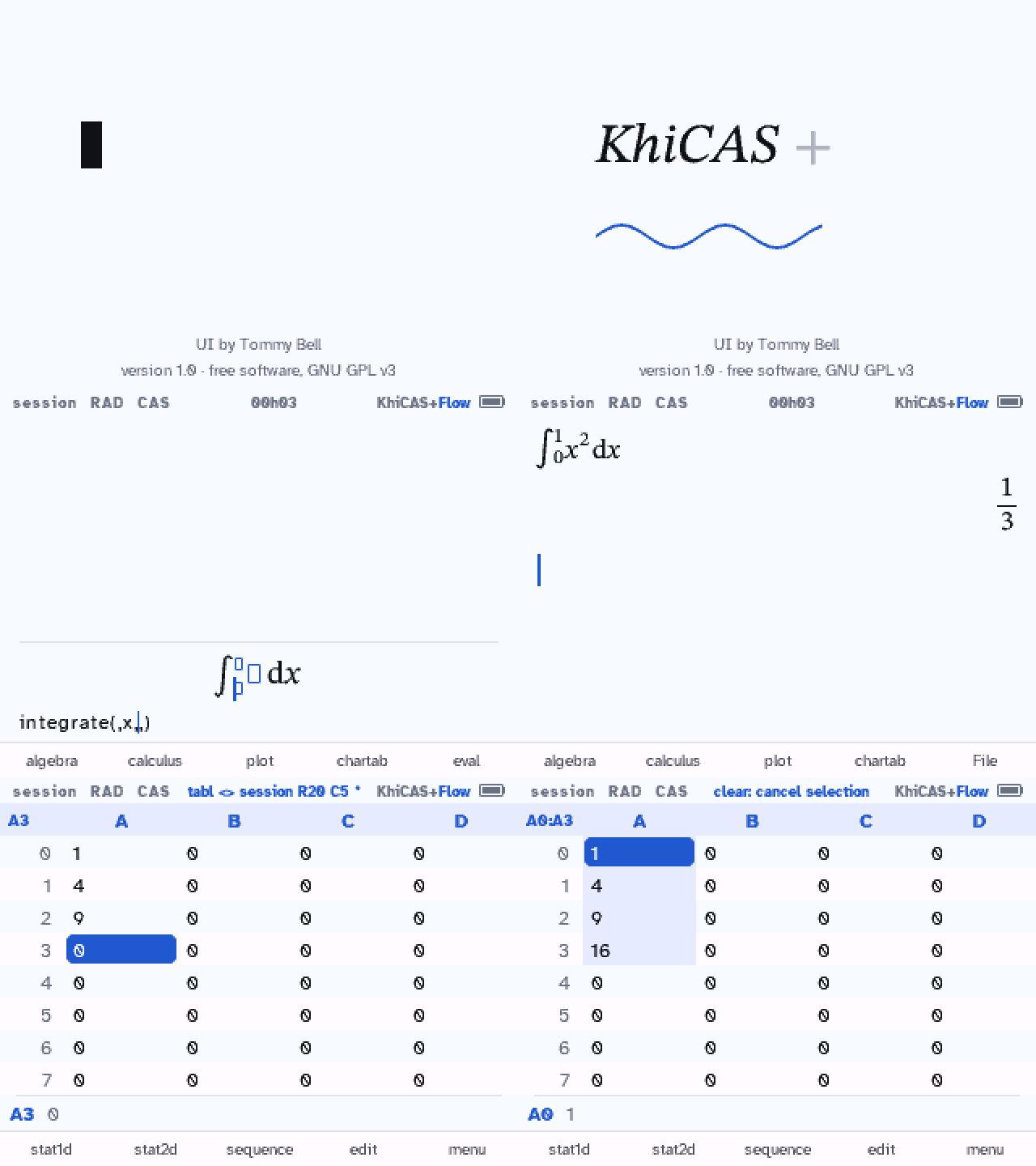
- KhiCAS + Flow 1.0 replaces FlowCE Python: Bernard Parisse's KhiCAS as he arranged it (his menus, keys, catalog, 2D editor, spreadsheet, programs and debugger), in FlowCE's look and at its speed.
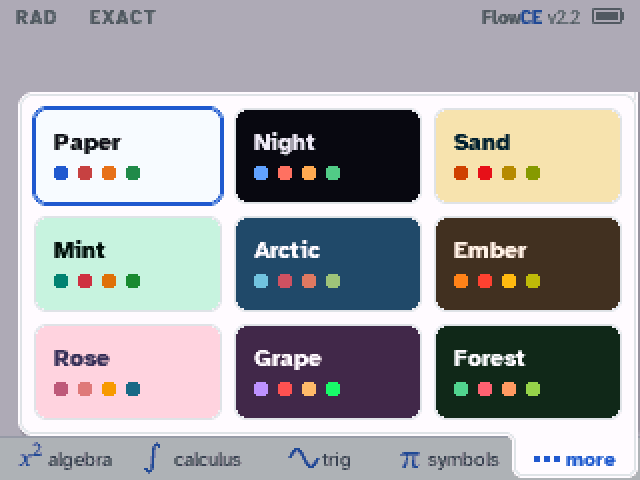
- 2.2, themes: Sand, Mint, Rose, Arctic, Ember, Grape and Forest have stronger colors, picked on a calculator, so its screen no longer shows several of them alike. Paper and Night are unchanged.
- 2.1 is faster: menus open in about half the time, everyday problems answer 25 to 45% sooner, the steps pages scroll twice as fast, and the probability page keeps up with the arrows. Same answers as 2.0.
- Steps for algebra: equations by the formula, factoring, systems, logs and exponentials, trig equations, inequalities, absolute values, polynomial division.
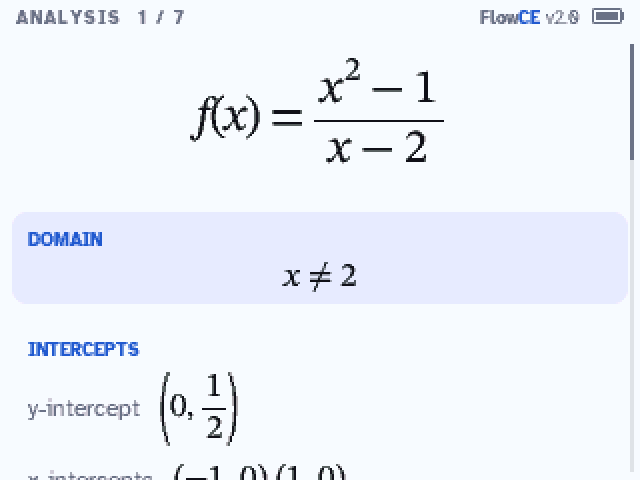
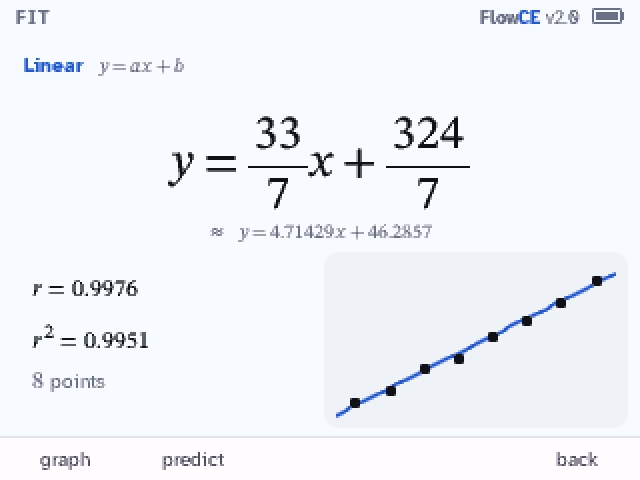
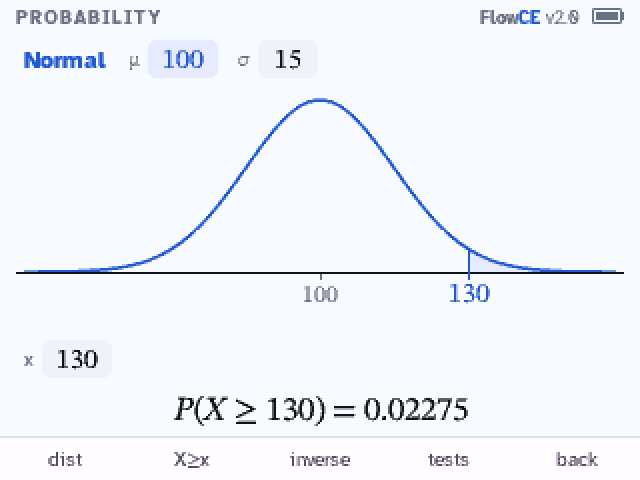
analyze(f): domain, intercepts, asymptotes, extrema, concavity and inflections on one page.- Statistics and probability: data, box plots, fitted curves with r², normal, t, chi-square, binomial and Poisson distributions, intervals and tests.
- What next? Under an answer, ▶ offers the likely next step: factor, solve for 0, graph, differentiate.
- Answers that read better: matrices drawn as matrices, long lists wrapped, the completed square and long division in F4, an antiderivative checked by its derivative.
Install
You need a TI-84 Plus CE, its USB cable, and Chrome or Edge on a computer. The page reads your OS and chooses the installer: v2.1 through 5.8.4, v3 on 5.8.5. Installing erases the calculator's apps and archived files.
-
1
Connect
Plug in the calculator and turn it on. Close TI Connect CE if it's open.
-
2
Install
Sends FlowCE.
-
3
Finish on the calculator
When it shows INST, press enter once. It installs and restarts by itself ("RAM Cleared"). Then apps → FlowCE.
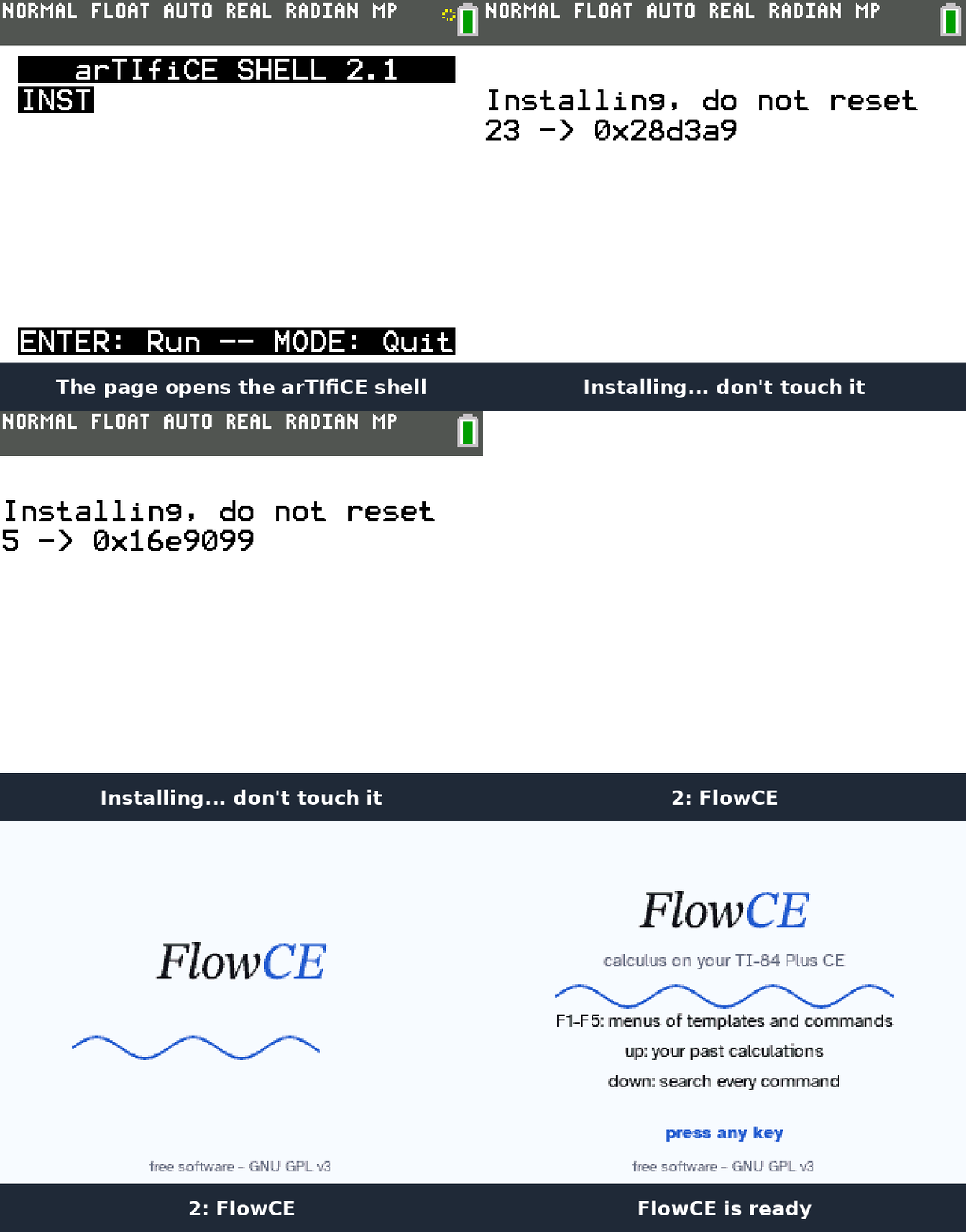
Install with TI Connect CE: OS 5.3–5.8.4
- Clear the archive: 2nd + (MEM) → 7 → ▶ ARCHIVE → 3 → 2.
- Download FlowCE.b84 and send it with TI Connect CE.
- prgm → enter → enter opens arTIfiCE. enter starts INST, enter again installs.
- At "Success! Will now reset", press enter. Then clear, apps → FlowCE.
“Unknown OS version”, or updating the calculator
If INST shows “Unknown OS version”, reload this page and try its updated installer. If it still fails, report your model, OS and boot-code versions. Newer boot code still needs verification; upgrading the OS is not a confirmed fix. If FlowCE already works, keep your OS.
If you choose to update, TI currently offers OS 5.8.5. TI says you cannot downgrade afterward.
- Back up the calculator's files to your computer with TI Connect CE.
- Use TI's update page and choose your exact calculator model.
- Keep the calculator connected and powered. In TI Connect CE, choose Actions → Send OS/Bundles to Calculators…, select the downloaded OS file, then Send. Wait until the transfer and restart finish. TI's illustrated instructions.
- Close TI Connect CE. Return here and connect again: this page detects 5.8.5 and selects arTIfiCE v3.
Install on OS 5.8.5 with TI Connect CE
Back up your files first. FlowCE replaces the other apps. Keep your current OS; upgrading isn't needed to use FlowCE.
- Clear the archive before starting: 2nd + → 7 → ▶ ARCHIVE → 3 → 2.
- Follow the official arTIfiCE v3 instructions for OS 5.8.5: install Inequalz, reset RAM, send
arTIfiCE.8xpto RAM, open Inequalz's Functions screen, then sendINEQUVAR.8xv. After the restart, press on if the screen stays black. - apps → AsmHook2. Dismiss “Installation successful!” to return to the home screen.
- Download the version selected above: FlowCE or KhiCAS + Flow. Send the bundle with TI Connect CE. Keep INST in RAM and AppIns files in Archive. Keep AsmHook2 until you run INST; do not reset or erase again between these steps.
- prgm → select INST by name → enter → enter. Ignore the bundle's program A; it is for older OS versions. Press enter at the install prompt, then wait for the countdown to finish.
- At “Success! Will now reset”, press enter. After “RAM Cleared”, clear, then apps → FlowCE.
Verified in CEmu on OS 5.8.5.0074 with boot code 5.6.1.0006. Calculators with newer boot code still need verification. If INST says “Unknown OS version”, report your model, OS and boot-code versions.
Trouble?
- Connect fails on Windows: update TI Connect CE to 6.1 or newer, then unplug and replug the calculator.
- Connect fails on a Mac or Chromebook: close TI Connect CE, then unplug and replug.
- Linux: add a udev rule such as
SUBSYSTEM=="usb", ATTRS{idVendor}=="0451", ATTRS{idProduct}=="e008", TAG+="uaccess"in/etc/udev/rules.d/69-ti-calc.rules, then replug. - Still not enough memory after the erase: some apps survive it (often TI's language apps). Delete them: 2nd + → 2 → Apps, del on each.
- "RAM Cleared" but this page still waits: it is installed. Press apps → FlowCE.
- Frozen at "Success! Will now reset": press the reset button on the back (a pen tip). FlowCE stays installed.
- The calculator acts strangely: clear the RAM: 2nd + → 7 → 1 → 2. FlowCE stays installed.
- OS 5.8.5: the page selects v3. Follow its calculator prompts, or use TI Connect CE. OS 5.8.4.0058 uses v2.1.
- INST says “Unknown OS version”: see OS help and update instructions. Updating is not a confirmed fix for newer boot code.
Something else, or a wrong answer? Report it on GitHub or on the Cemetech thread.
Screens
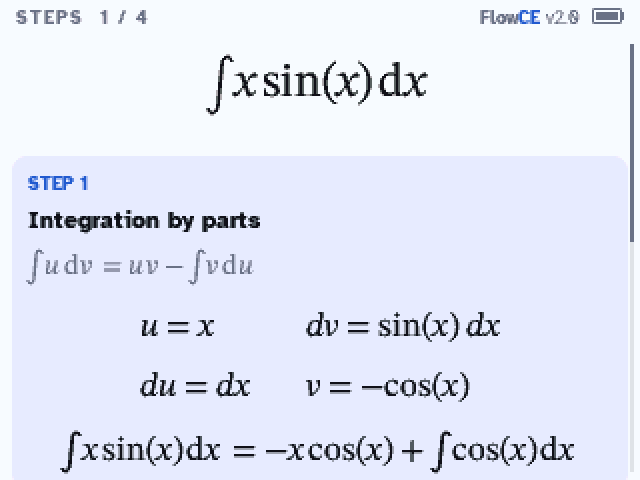
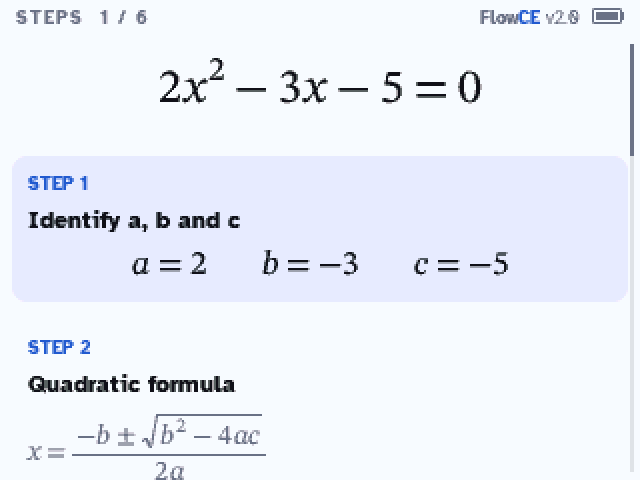
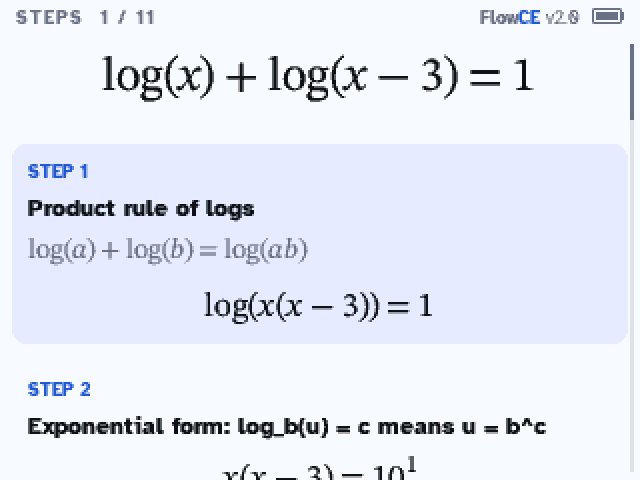
- F1–F5 menus
- ▲ history
- ▼ search commands
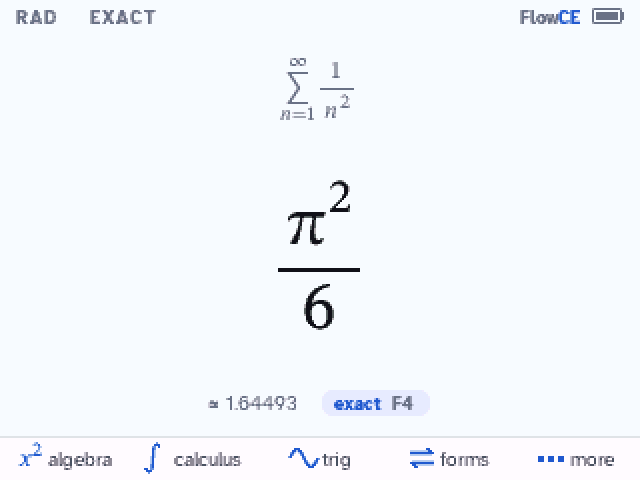
- F4 other forms
- enter after an answer: its steps
- ▶ after an answer: what next
- on stops a calculation